Staff management
CREW
Crew and job management for field teams. CREW shows who’s on the clock, what each person is working on, and what’s left for the day, on a phone.
Try: Open Team, then Schedule, and tap the unassigned job to give it to someone.
Who it helps
Who uses it
Owners and admins who run a field crew, such as a property maintenance team, and the crew members who clock in and work through their jobs.
The problem
Knowing who’s working, where, and on what usually takes phone calls. Jobs get handed out by text and lost, and hours get pieced together at payroll.
What gets easier
- Admins see who’s on the clock and where, without calling around.
- Jobs are assigned, rescheduled, and reprioritized from one schedule.
- Crew members see their own jobs and clock in and out on their phone.
- Hours, payroll, tools, trucks, and supplies are tracked in the same app.
How it works
See who’s on the clock
- Starts with
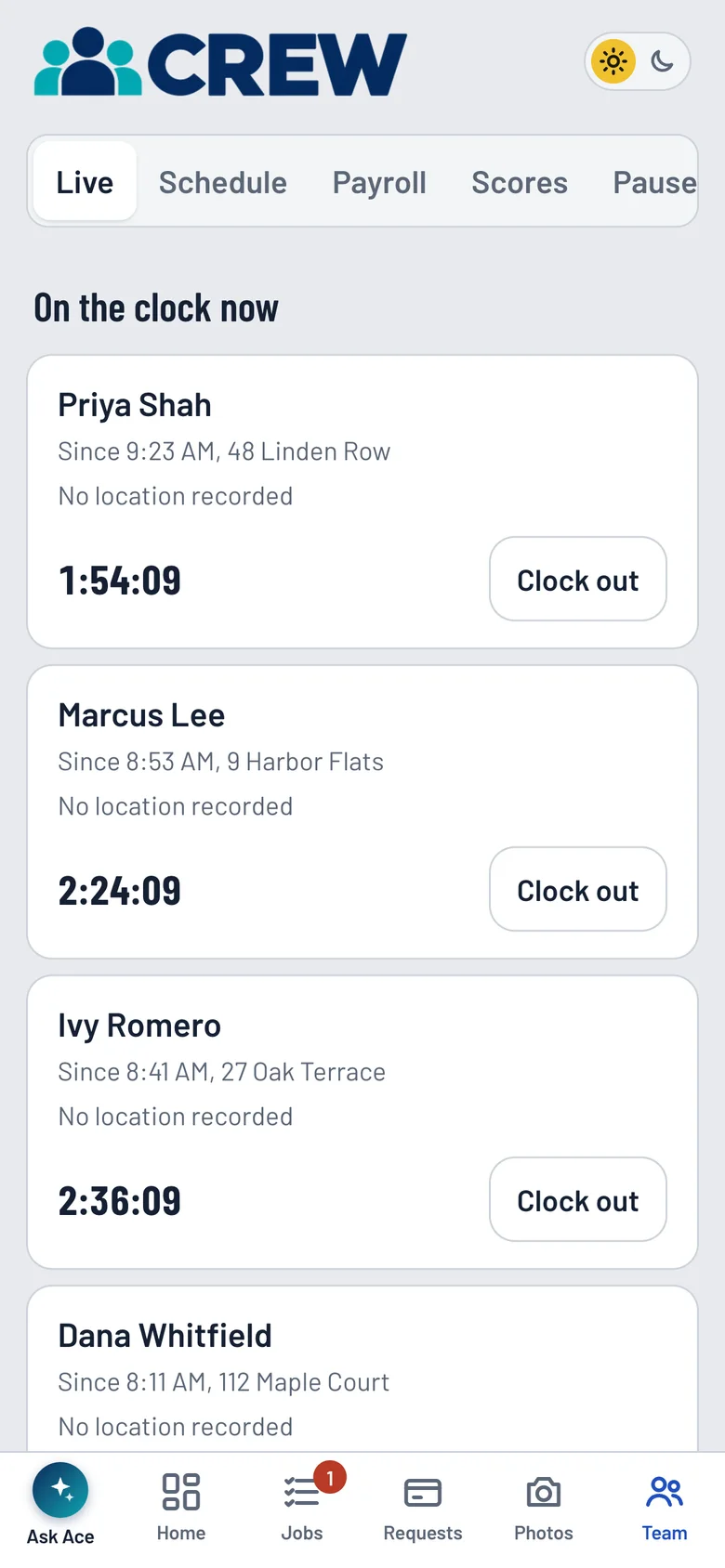
- Team › Live lists everyone clocked in, when they started, and the job site.
- In CREW
- Check time on shift, see where each person clocked in, and clock someone out if they forgot.
- Afterward
- A live picture of the crew without a single phone call.
Plan the day
- Starts with
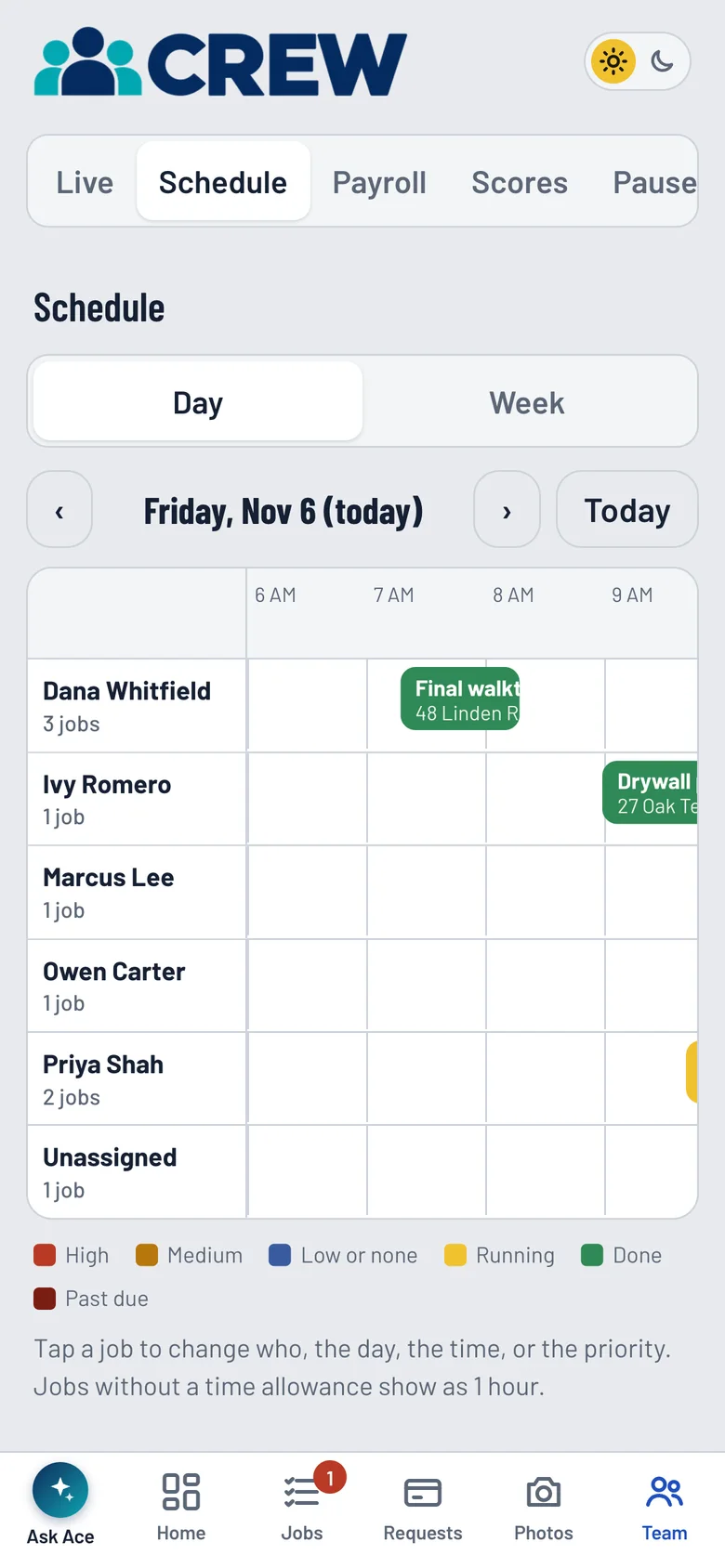
- Team › Schedule shows a day or week timeline with a row per person and any unassigned jobs.
- In CREW
- Tap a job to change who has it, the day, the start time, or the priority. Jobs are colored by priority and status: running, done, or past due.
- Afterward
- Every open job has an owner and a day, and the crew sees the change on their phones.
Hand out and track jobs
- Starts with
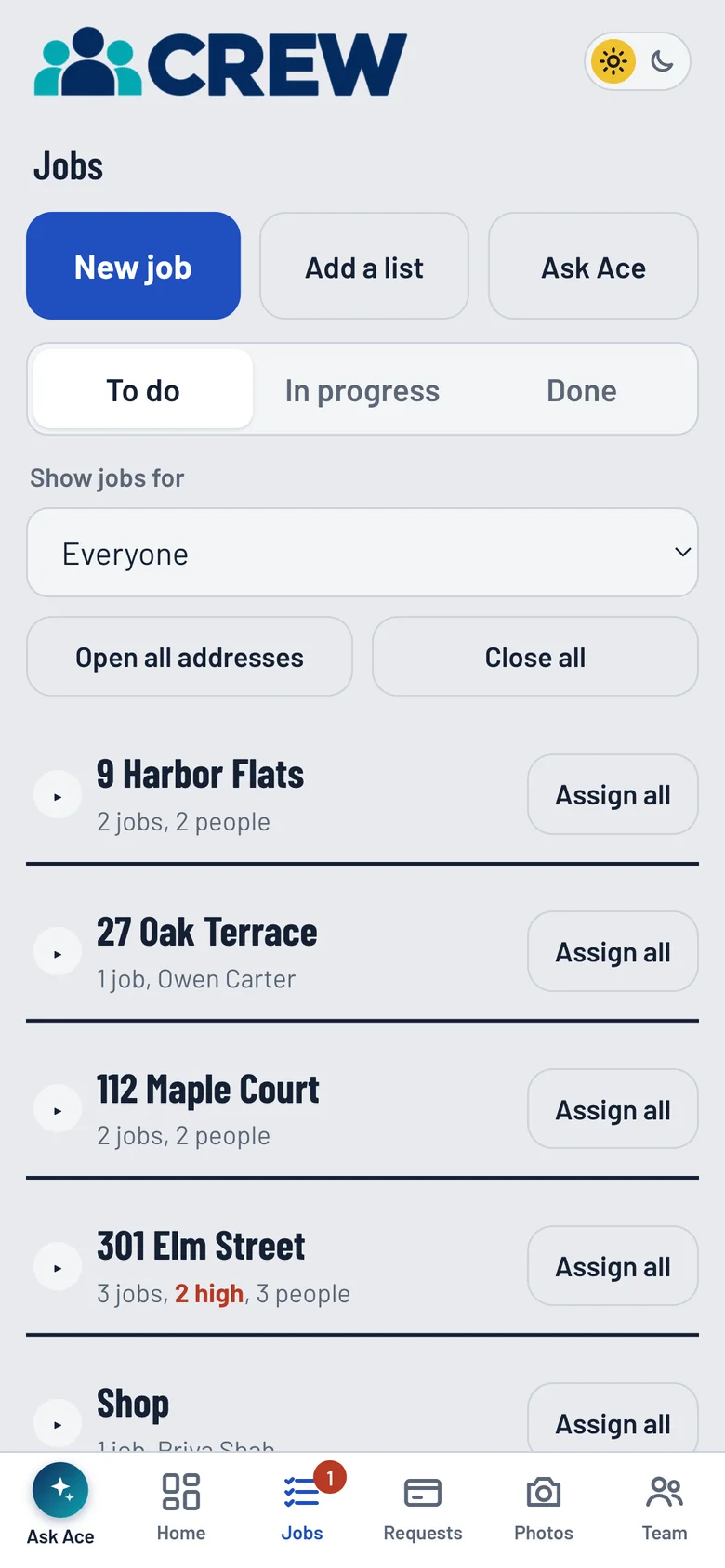
- The Jobs tab groups work by address, with to do, in progress, and done.
- In CREW
- Add a job or paste a whole list, filter by person, and assign every job at an address at once.
- Afterward
- Jobs move from to do to done as the crew works, and the home screen counts what’s done, due, and past due.
What’s inside
Clock in and out
Time on shift and job site for each person, with clock-in locations when the phone shares them.
Jobs
Priority, time allowance, address, and photos for each job, grouped by site.
Day and week schedule
A timeline per person, with unassigned jobs called out.
Payroll, scores, and pauses
Team tabs for hours and pay, job scores, and work pauses with who, when, how long, and why.
Requests and photos
Requests from the crew to review, and the photos taken on jobs.
Tools, trucks, and stock
Who has which tool or truck, mileage readings, and supplies on hand.
Phone and PIN sign-in
Crew members sign in with their cell number and a PIN, without needing an email address.
Ask Ace
An AI assistant for admins that turns plain-words requests into job changes, and shows the plan before anything changes.
Screens
Real screens with sample data. Select any screenshot to see it larger.
CREW on a phone
Home. The day in numbers for an admin: done, hours, on the clock, remaining, and due. Team › Live. Who’s working right now, where, and for how long. Team › Schedule. Each person’s day on one timeline, with unassigned work at the bottom. Jobs. Work grouped by address, ready to assign in one tap.
CREW is built for phones. On a desktop or laptop it shows the same phone layout, centered, so there are no separate desktop screenshots.
Try CREW.
The real CREW app, built from its own code, signed in as a sample admin with a fictional crew. Nothing is saved, and texts and Ask Ace are turned off.
Need software like CREW for your business?
We design and build custom software, web applications, and integrations for businesses in Georgia and across the US. See our custom software services or describe what you need.