Client software · Built for Limitless Exotics
DRIVE
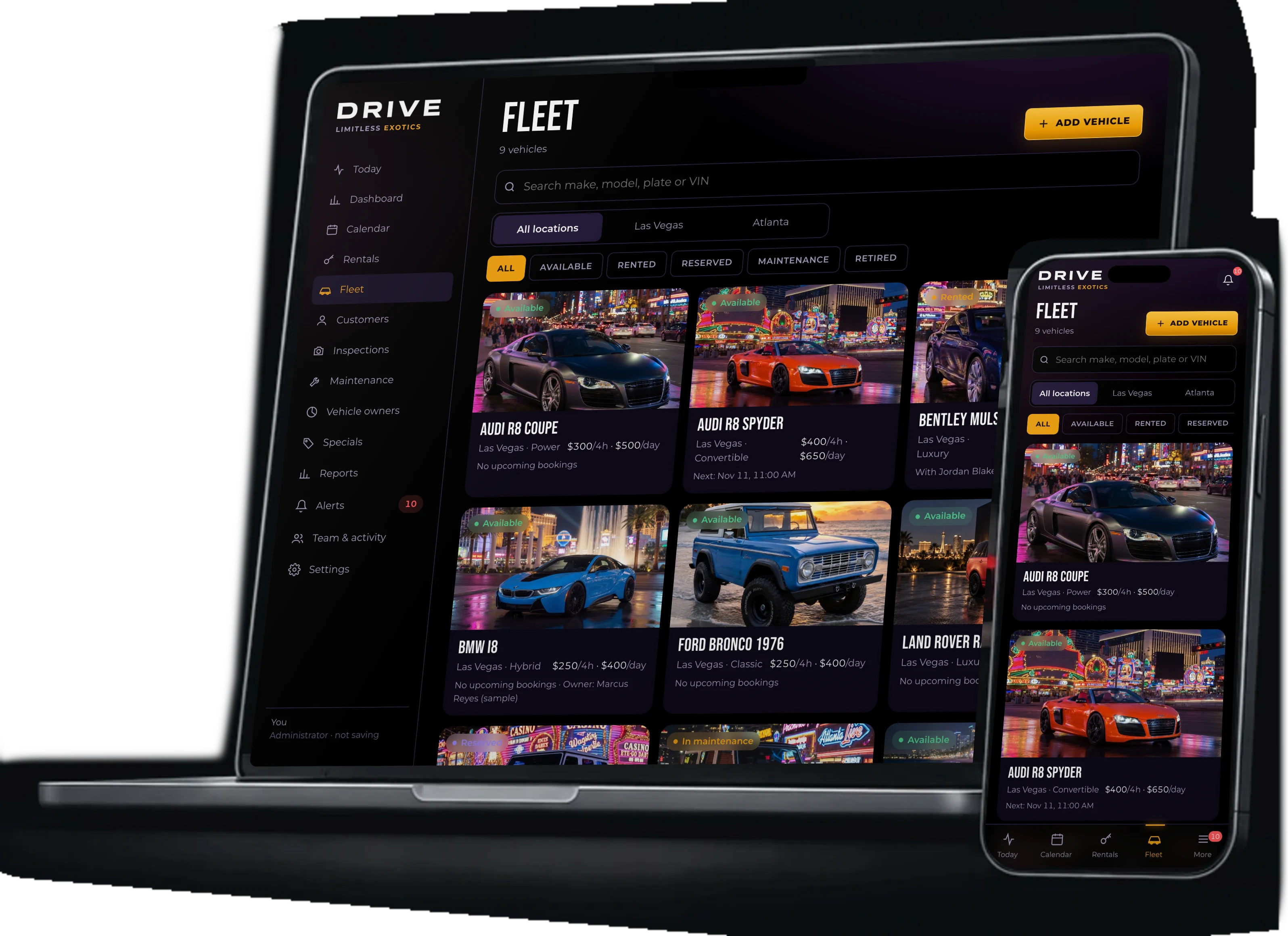
Rental operations software for an exotic car rental company. DRIVE keeps the fleet, bookings, customers, inspections, and owner payouts in one app, on a desktop or a phone.
Try: Open Calendar, then tap an empty day on a car’s row to start a booking.
Who it helps
Who uses it
The rental team at Limitless Exotics: administrators, managers, and employees, across its locations.
The problem
An exotic car rental runs on details: which car is free on which day, whether a customer’s license and insurance check out, what condition a car left and came back in, and what each private owner is owed. When those details live in different places, cars get double-booked, damage has no photo behind it, and payouts get worked out by hand.
What gets easier
- One calendar shows every car’s bookings, pickups, returns, and maintenance.
- Each rental follows the same checklist from reservation to close.
- Inspection photos, signed agreements, and payments stay with the rental.
- Owners of privately owned cars get a statement of what they earned.
How it works
See the whole fleet
- Starts with
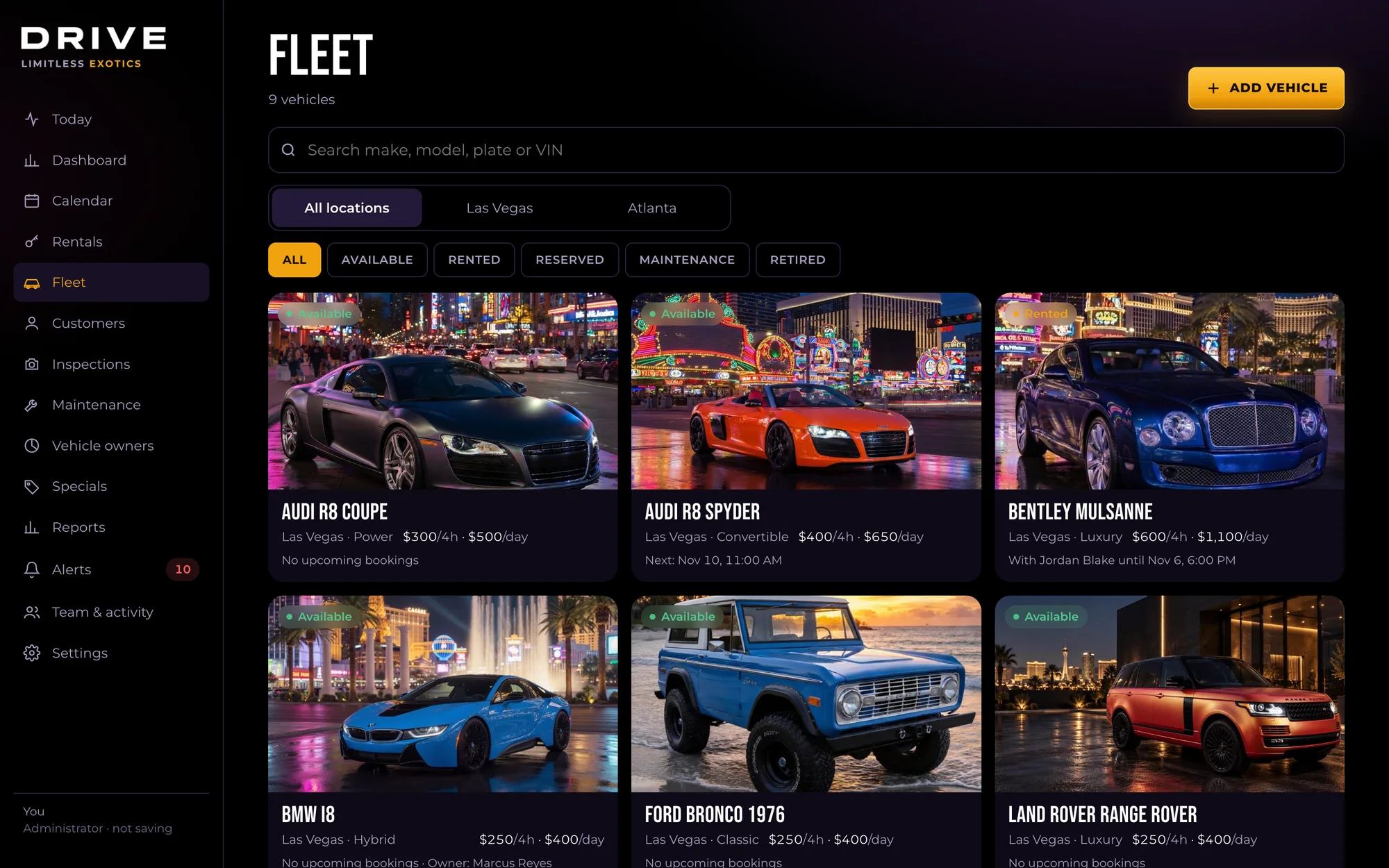
- Every car, with its photo, rates, location, and current status.
- In DRIVE
- Filter by status or location, or search by make, model, plate, or VIN. Open a car to see its bookings, service records, and inspections.
- Afterward
- Which cars are available, rented, reserved, or in maintenance right now, and who has each car until when.
Check availability and book
- Starts with
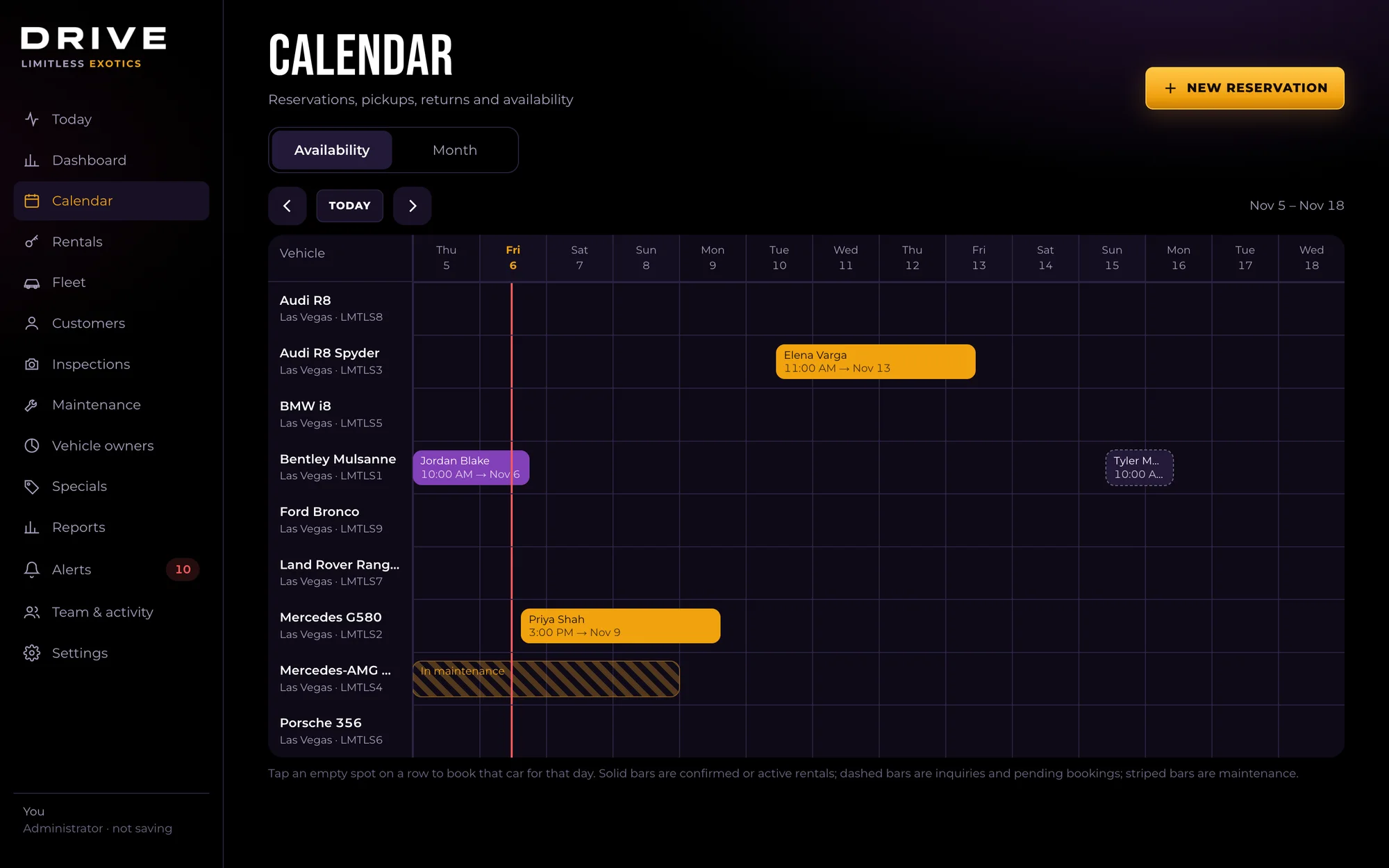
- A two-week calendar with each car on its own row. Solid bars are confirmed rentals; dashed bars are inquiries; striped bars are maintenance.
- In DRIVE
- Tap an empty day on a car’s row. Choose a customer or add one, set pickup and return, and add delivery or collection if needed. DRIVE warns about conflicts with other bookings.
- Afterward
- A confirmed reservation, priced at that car’s rates, that appears on the calendar for the whole team.
Prepare for the day
- Starts with
- The Today screen: the day’s pickups and returns, plus alerts such as a return due within 24 hours, missing pickup photos, or an unsigned agreement.
- In DRIVE
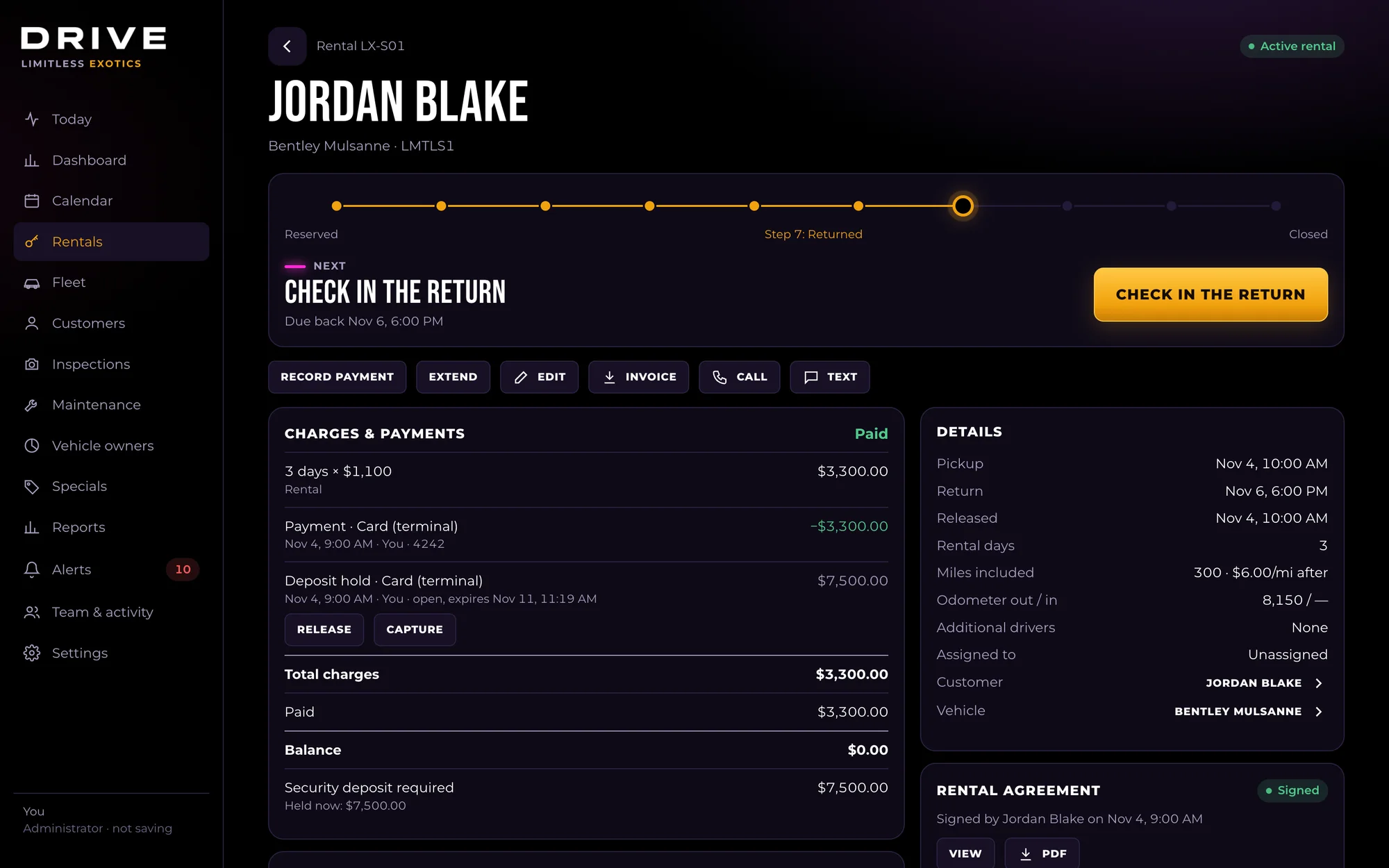
- Open a rental and follow its next step: verify the customer, sign the agreement on the phone, take payment and the deposit hold, inspect the car, and release it. On return, check it in, inspect again, and review final charges.
- Afterward
- Every rental moves through ten tracked steps, from Reserved to Closed, with the paperwork attached.
What’s inside
Availability calendar
Two-week and month views of every car’s rentals, inquiries, and maintenance. Tap a free day to book.
Ten-step rental checklist
Reserved, verified, signed, paid, inspected, released, returned, final inspection, charges, and closed.
Customer verification
Check license, age, insurance, and ID before a car goes out.
Agreements signed on the phone
Hand the phone to the customer to review and sign the rental agreement.
Payments and deposit holds
Record payments, hold and release deposits, add charges, and produce invoices as PDFs.
Pickup and return inspections
Photos and damage marks at both ends of a rental, with a before-and-after comparison.
Maintenance and reminders
Service records per car, and reminders by miles or months, such as oil changes and tire checks.
Vehicle owners
Revenue shares for privately owned cars, with owner statements.
Specials
Create a special and get ready-made graphics for social posts.
Roles and locations
Administrator, manager, and employee access, across more than one location.
Screens
Real screens with sample data. Select any screenshot to see it larger.
DRIVE on desktop
Fleet. Every car at a glance, with status, location, and rates, so the counter knows what it can rent today. Calendar. Each car’s next two weeks, so a free slot is one tap from a booking. Today. The day’s pickups, returns, and anything that needs attention before a car goes out. Rental. Where a booking stands in its ten steps, and what’s been paid, held, and signed. Vehicle. One car’s photo, details, availability, and history, with Inspect and Book close at hand.
DRIVE on a phone
Today on a phone, for staff on the lot. The availability calendar on a phone. Fleet on a phone. A rental’s next step on a phone: here, check in the return. A car’s page on a phone, ready to inspect or book.
Try DRIVE.
The real DRIVE app, built from its own code, running on sample customers and the Limitless Exotics inventory. Nothing is saved, and texts, email, and sharing are turned off.
Need software like DRIVE for your business?
We design and build custom software, web applications, and integrations for businesses in Georgia and across the US. See our custom software services or describe what you need.